Start with the recording path
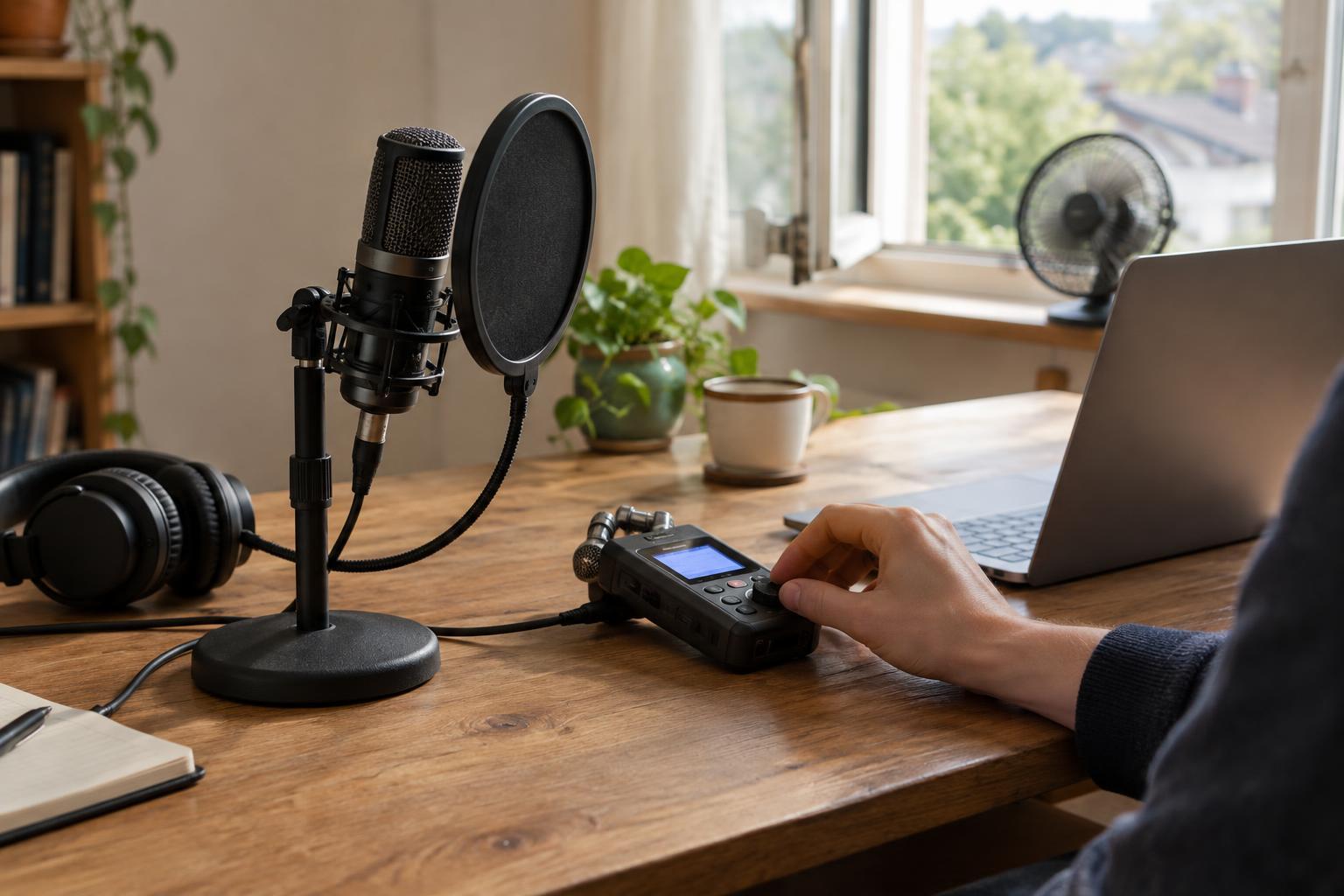
Before checking individual settings, trace the path your sound will take: microphone, cable or wireless connection, audio interface or recorder, recording app, and headphones. Confirm that each piece is connected and that the app is receiving the intended input. A microphone can look ready while the software is quietly recording a laptop’s built-in mic instead.
If you are recording more than one person, decide whether each voice needs a separate track. Separate tracks can make later edits easier, but only if every channel is assigned and armed correctly. Label tracks or files before the session so you can identify them afterward. Keep your checklist short enough to repeat every time; a familiar routine is more useful than a detailed list you stop using.
Check power and connections
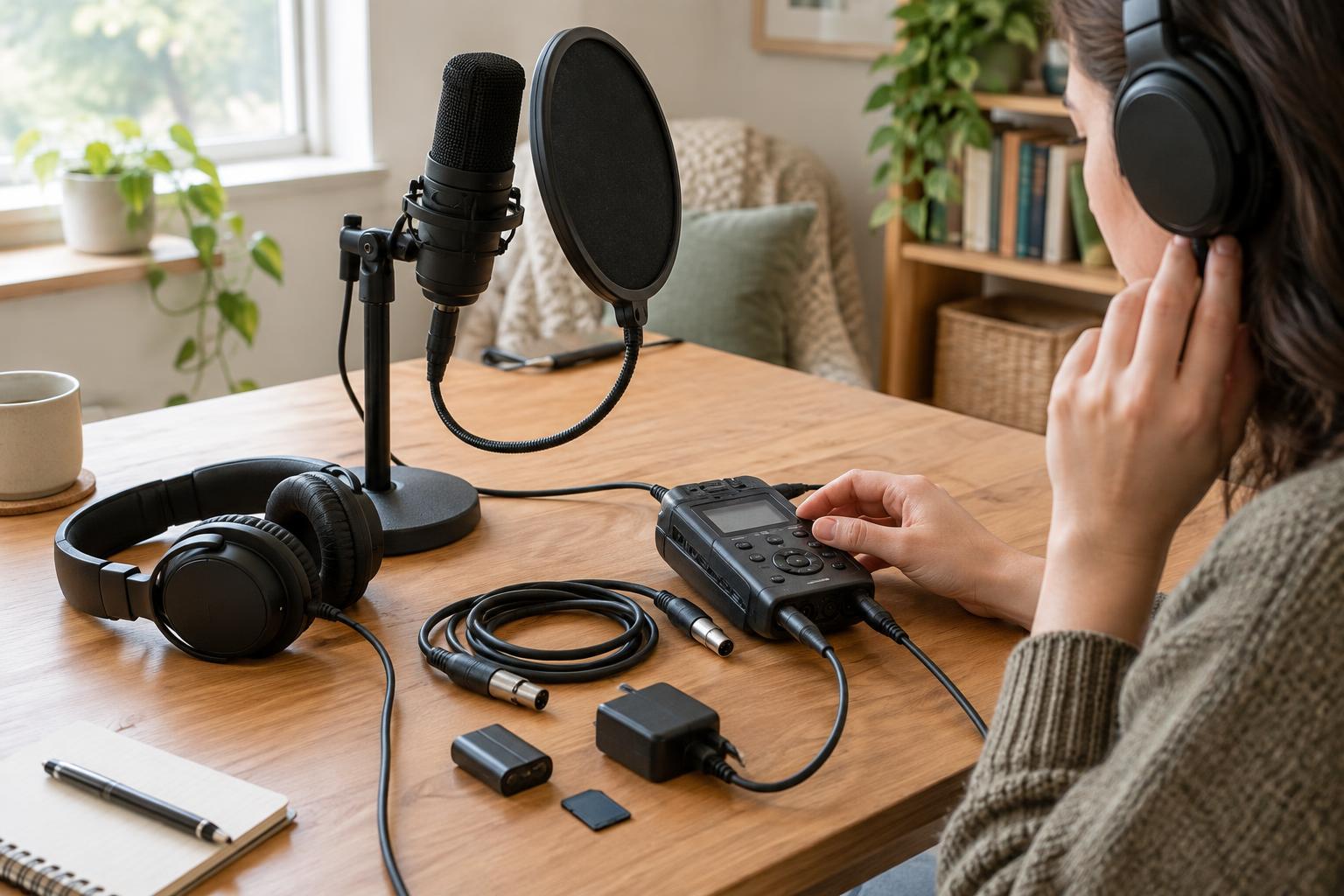
Charge or replace batteries in recorders, microphones, headphones, and any other device the session depends on. For a long recording, use a dependable power connection where practical, and know what will happen if that connection is interrupted. If your setup uses phantom power, switch it on only for equipment that requires it and check that the microphone works before your guest arrives.
Seat cables firmly and listen for crackles or dropouts while gently moving connections that might be disturbed during the session. Keep a spare cable or adapter nearby if you have one. Wireless equipment needs its own check: confirm that the transmitter and receiver are connected, have adequate power, and continue working at the distance and position you plan to use.
Make room for the recording
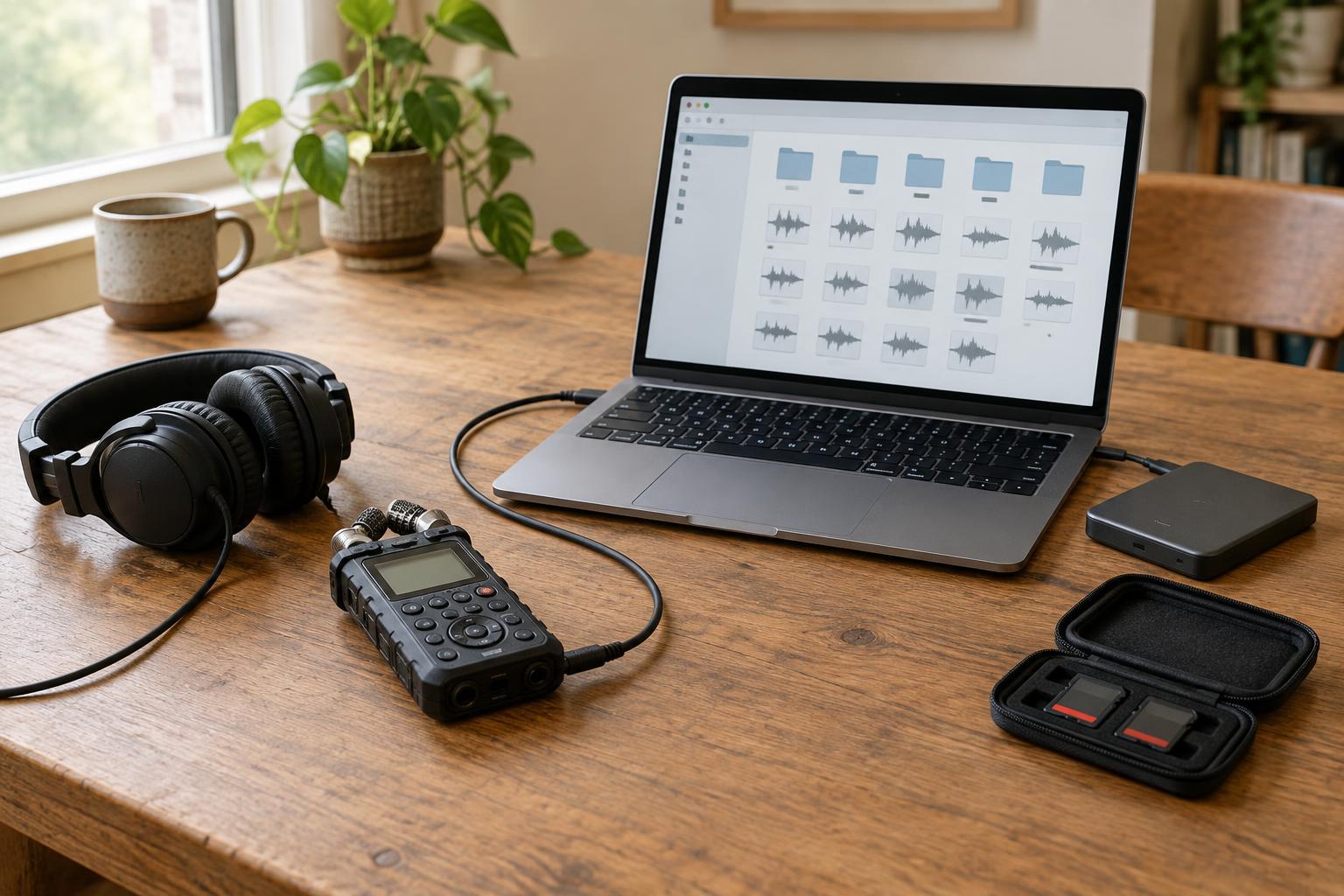
Confirm that the recorder or computer has enough free space for the whole session, including a longer-than-expected conversation and a few retakes. Check the actual destination folder or memory card, not just the device’s total capacity. If you use a memory card, make sure the recorder recognizes it and that you will not overwrite material you still need. Avoid clearing a card until its existing recordings have been copied and checked.
Choose a file name that will make sense later, such as a project name followed by the speaker or segment. Check whether your recording app saves automatically and where its files go. If it offers a backup recording option, understand how to use it before relying on it. A backup device can help too, provided it is placed where it can capture usable sound and you have tested it.
Verify settings while listening
Set the intended input, recording format, and sample rate before you begin. If you are joining an existing project, match its agreed settings; otherwise, use a consistent, uncompressed recording format when your equipment and storage allow it. Select the correct channels and confirm that monitoring is coming from the recording path, rather than from an unrelated microphone or app.
Ask each speaker to talk at their normal volume and then at the loudest level they are likely to use. Adjust input gain so ordinary speech is clear without loud moments clipping. Watch the meters, but listen through headphones as well: meters cannot tell you whether clothing is brushing a microphone, a cable is buzzing, or a room sounds unusually echoey. Check for fans, notifications, traffic, and chair movement, then reduce what you reasonably can.
Record, replay, and reset
Make a short test take that includes every speaker, a little silence, and any sound you plan to capture during the session. Stop and play it back from the saved file. This final step confirms not only that sound reached the meters, but that the recording was written where you expected and is intelligible on playback.
If something sounds wrong, change one thing at a time and record another test. Moving a microphone closer, changing a noisy cable, or choosing a quieter position may help more than trying to repair the problem later. Once the test sounds right, check that the correct tracks are armed, note the file location, and start the real take. After a break or equipment change, repeat a brief version of the check rather than assuming the setup is unchanged.