Recognize the noise before changing your setup
Handling noise is sound created when movement reaches the microphone through its body, stand, or cable. It often appears as a dull thump, scrape, or low rumble. A desk can carry vibrations from typing, tapping, moving a mug, or adjusting a monitor. Those vibrations may reach a microphone even when nothing touches it directly.
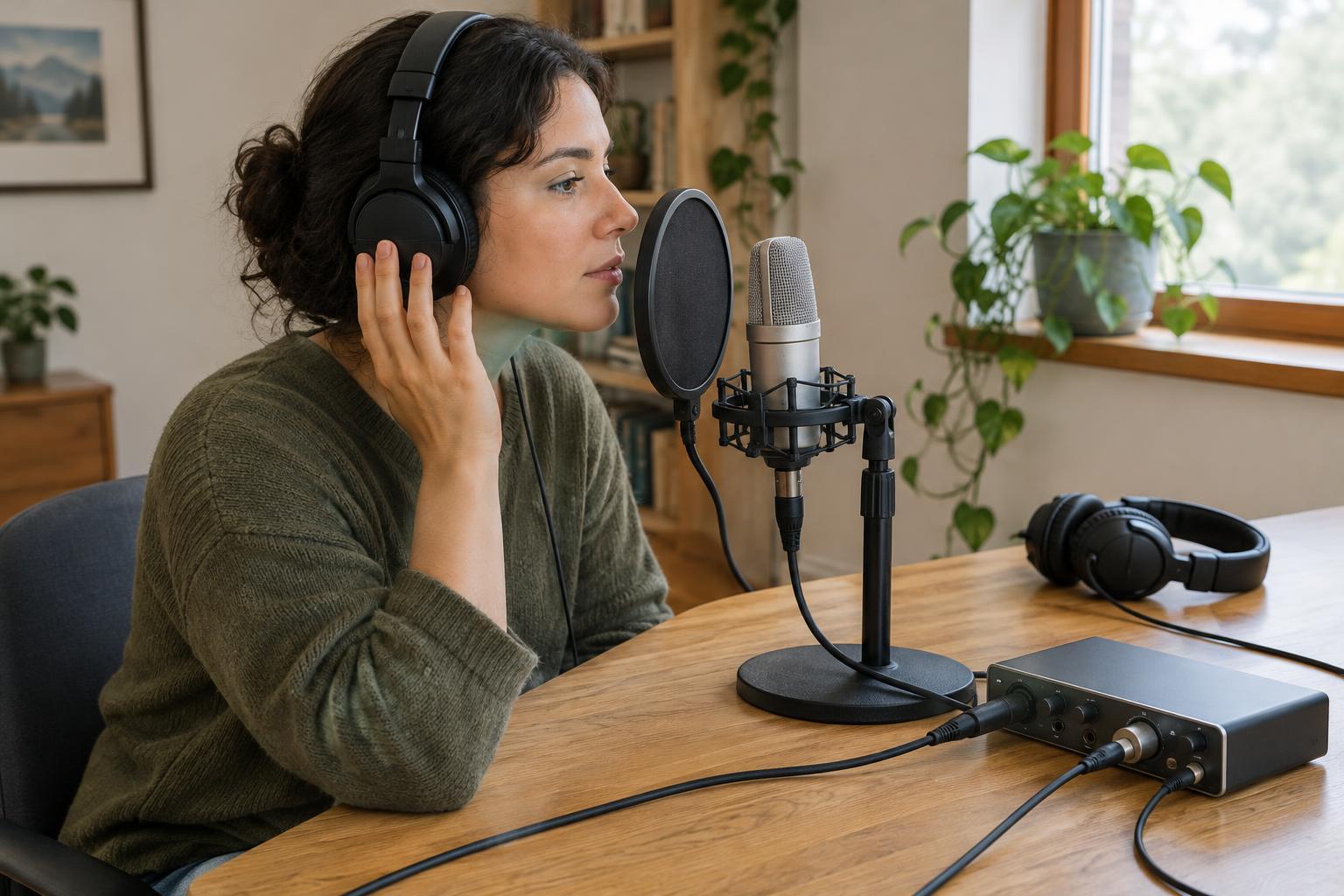
Make a short test recording in the position you normally use. Speak for a few seconds, then pause while you lightly type, touch the desk, move your chair, and brush the microphone cable. Listen back on headphones at a comfortable volume. Testing one action at a time helps you identify the path the noise takes, rather than changing several things and guessing which helped.
Separate the microphone from the desk
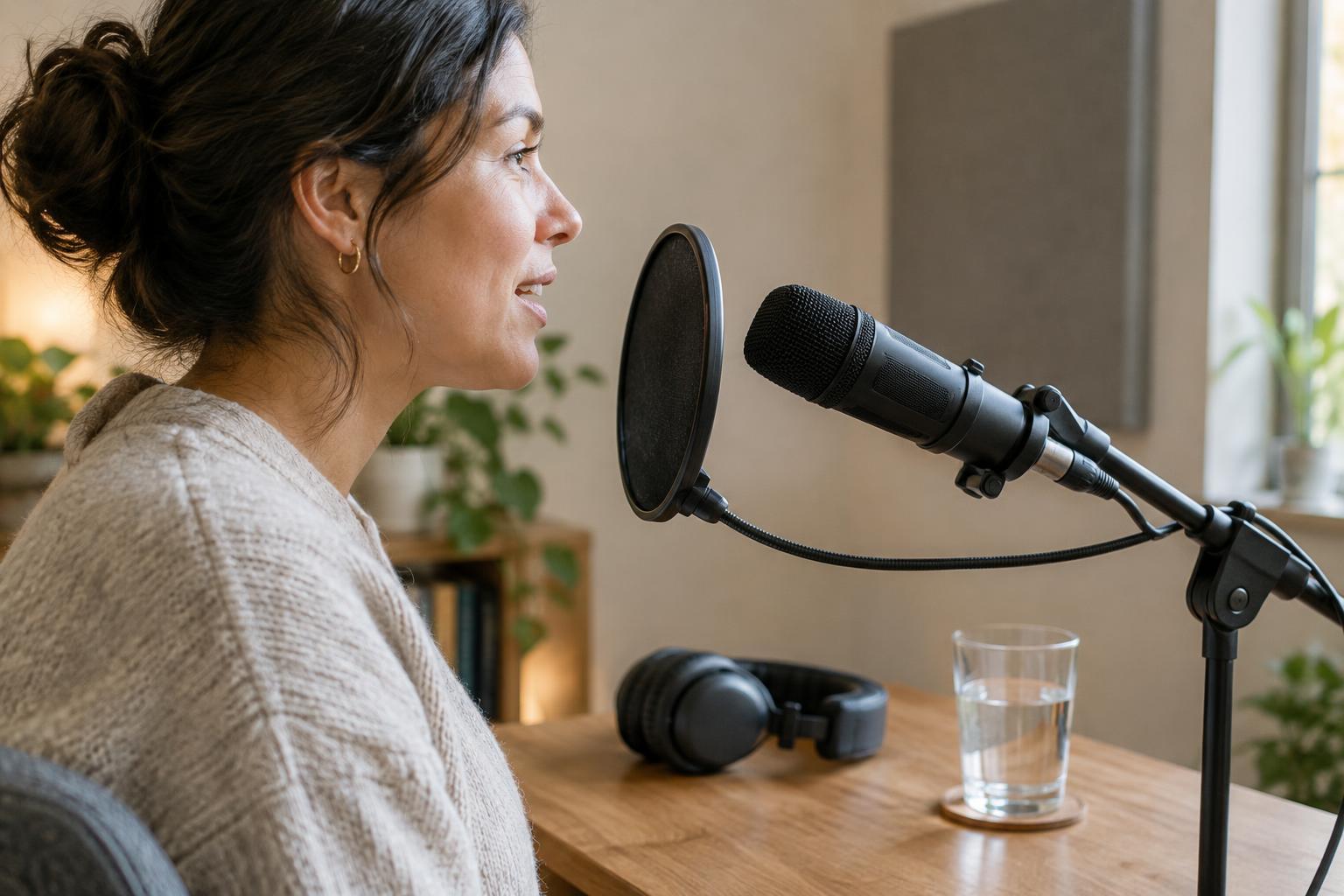
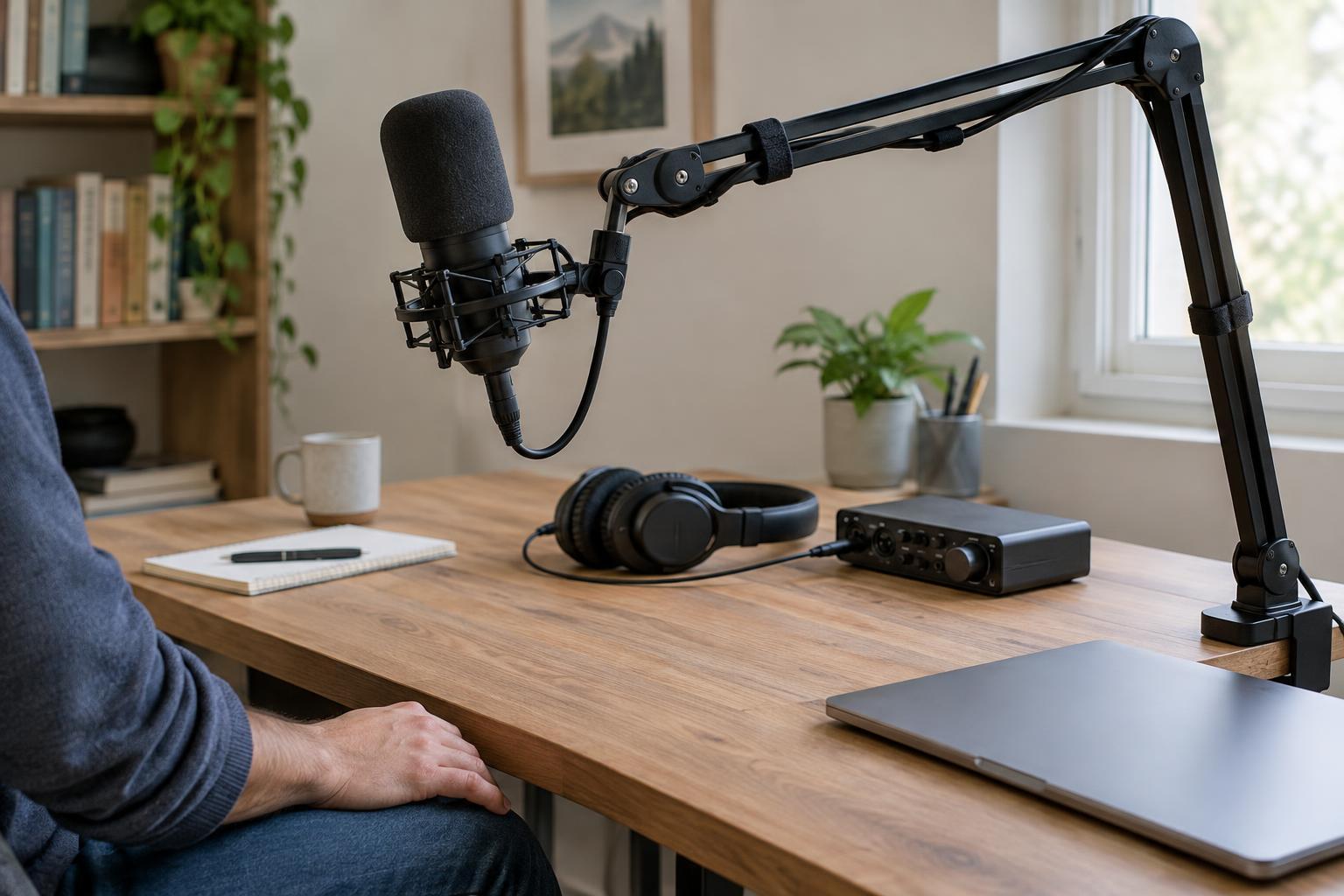
If a desk stand picks up taps and typing, moving the microphone onto a floor stand can break that direct connection. Place the stand where your feet and chair are unlikely to bump it. If a floor stand is impractical, try a boom arm or a stable desk stand with a suitable shock mount. A shock mount holds the microphone in a flexible suspension, reducing some vibrations passed through the support. It will not stop a loud knock from being heard through the air.
A boom arm still attaches to the desk, so its position matters. Clamp it to a firm area away from the keyboard, check that its joints do not wobble, and avoid resting your hand on it while speaking. Set the microphone where you can maintain a comfortable speaking distance without repeatedly moving the arm. If you use a small desktop stand, a sturdy pad beneath it may help with minor vibrations, but test it: a soft surface that makes the stand unstable can create new bumps.
Keep cables quiet and controls within reach
A cable can transfer movement to a microphone when it hangs taut or rubs against a stand. Leave a little slack near the microphone and secure the cable along the arm or stand with loose straps or clips. Keep it clear of chair wheels, your hands, and objects you move during a session. Do not pull on the cable to reposition the microphone; move the stand or arm instead.
Arrange your notes, water, keyboard, and recording controls before you press record. If you need to scroll or take notes while speaking, test whether those actions are audible. A mouse or quiet page turn may be less disruptive than typing, depending on your setup. Put frequently used controls where you can reach them without leaning into the stand or dragging a cable across the desk.
Use recording habits that prevent bumps
Position the microphone before you begin and make a brief test recording at your normal speaking level. If the microphone is handheld, grip it steadily without squeezing or shifting your fingers across its body. If it is mounted, avoid tapping the stand to check whether recording has started. Use a visible recording indicator or listen through headphones instead.
When a bump happens, pause and repeat the sentence rather than trying to speak over the noise. Leave a short gap before restarting; that gives you a clearer edit point later. For interviews or shared desks, tell everyone which surfaces and cables are sensitive, and leave room for natural movement. The goal is not to sit perfectly still, but to remove avoidable contact from the recording.
Clean up what remains without hiding the voice
A high-pass filter can reduce some low-frequency rumble, including gentle vibrations, but it cannot reliably repair a strong thump. Apply it cautiously and listen to the voice afterward; too much filtering can make speech sound thin. Short, isolated bumps during pauses may be easier to cut or soften in an editor than bumps beneath words. Keep an unprocessed copy of the recording so you can compare changes.
For the next session, repeat your action-by-action test after making adjustments. Compare the same desk tap or cable movement before and after each change. This simple routine shows which fixes work in your particular room and keeps you focused on prevention. A stable microphone position, a relaxed cable, and fewer movements near the stand will usually do more for a clean recording than extensive repair afterward.