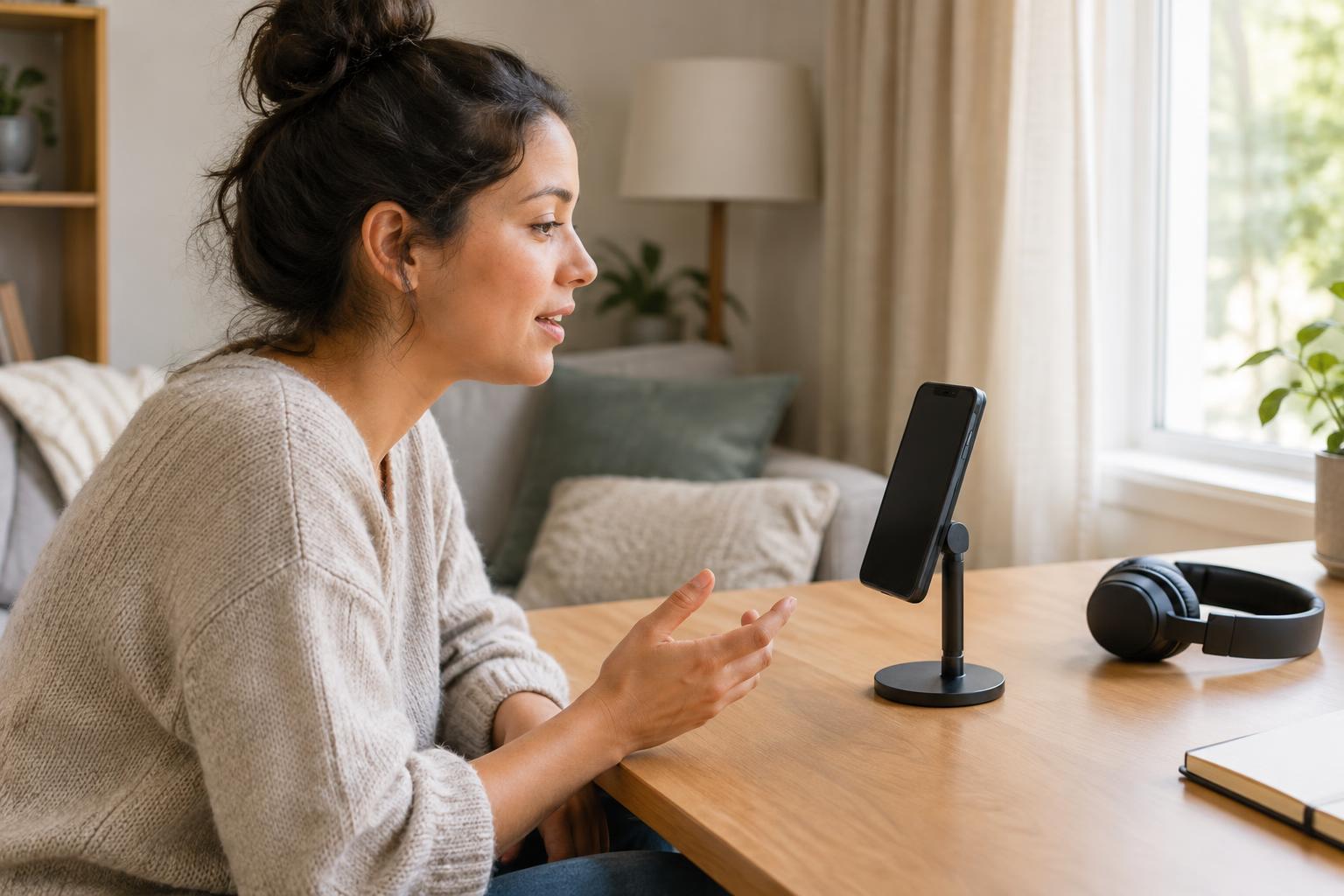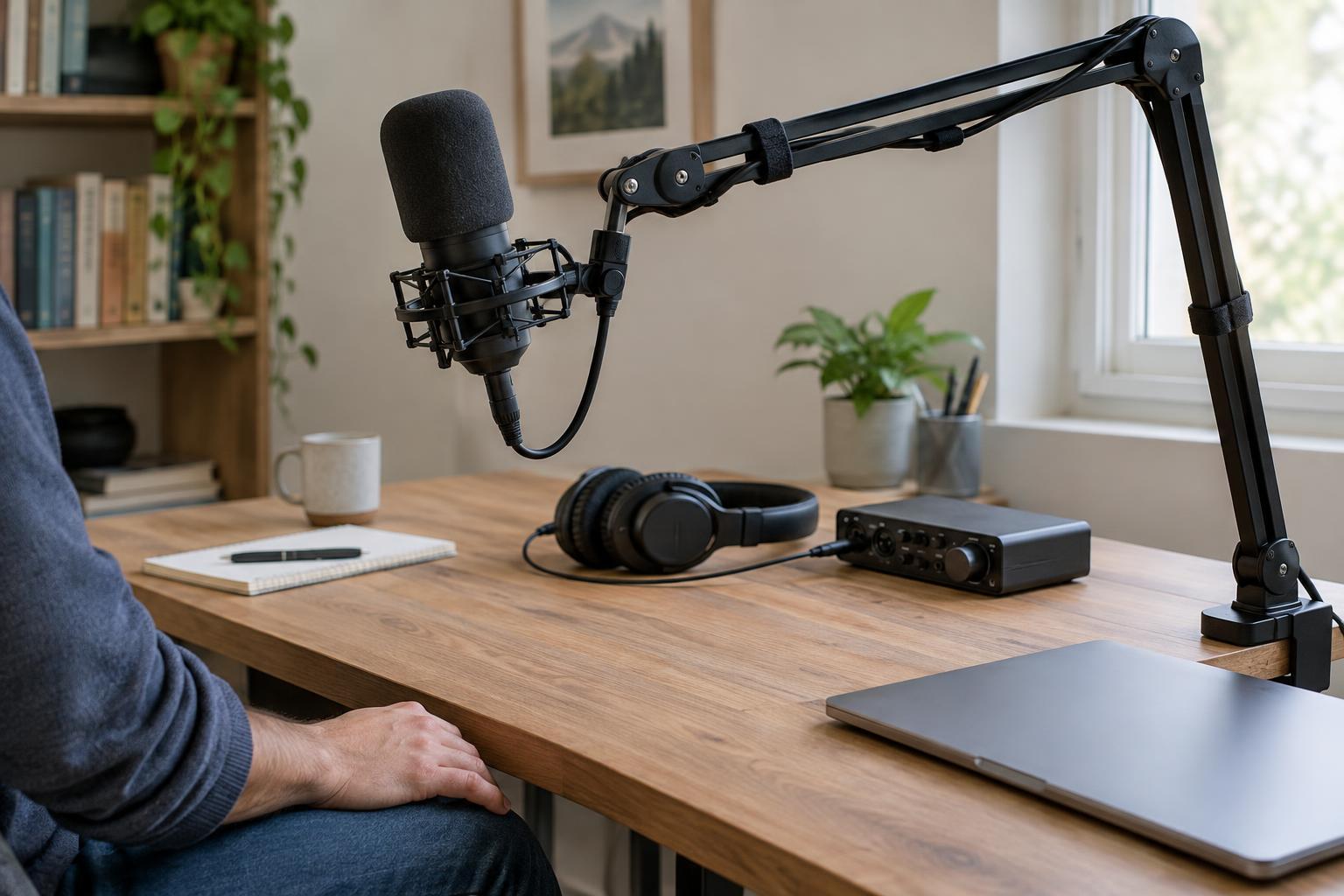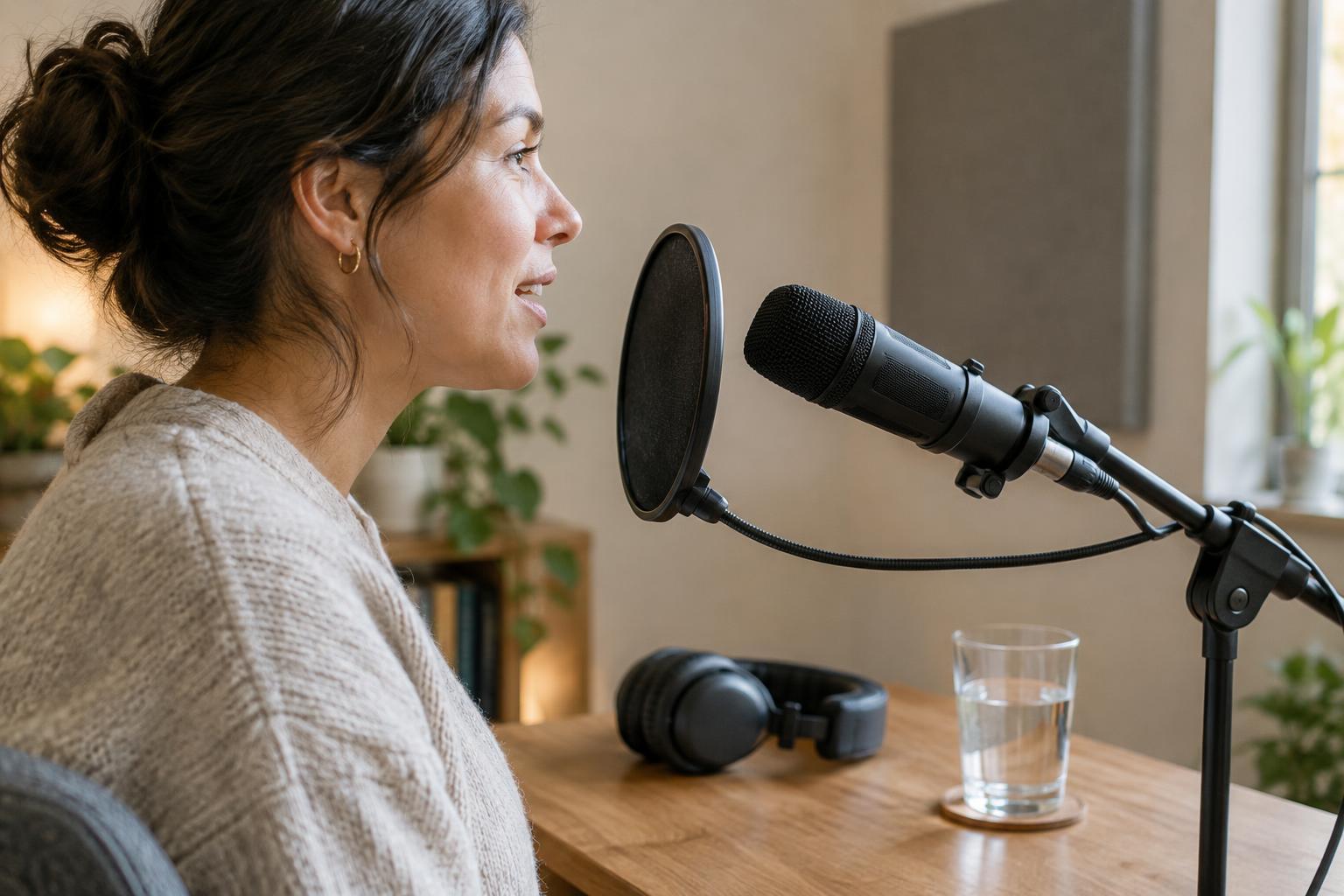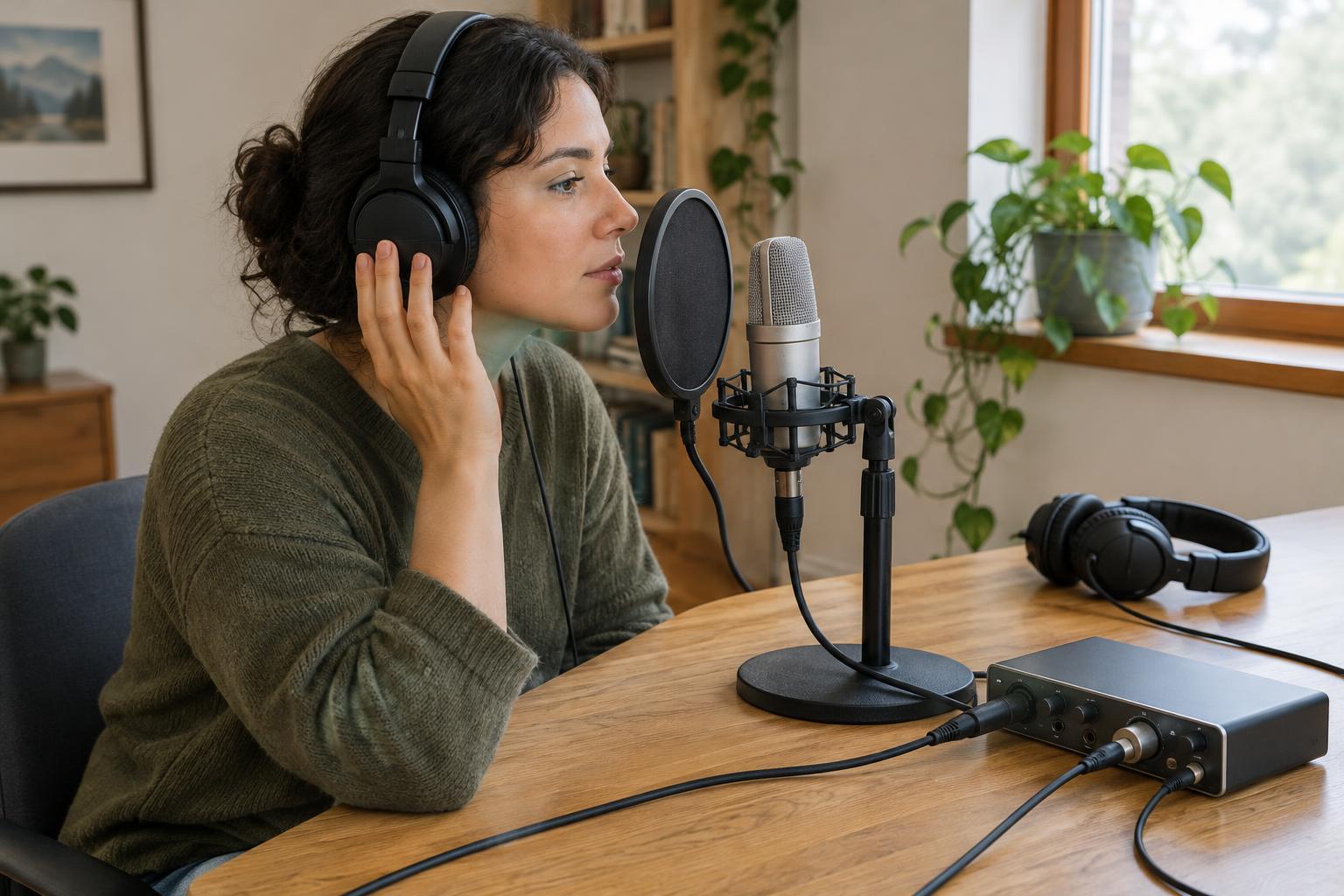
Why listen while you record?
A microphone does not hear exactly as you do. It may pick up a chair creak, a computer fan, a sleeve brushing against clothing, or a burst of breath that seems minor in the room. Headphones let you hear more of what is reaching the recorder, so you can adjust before repeating a long conversation or performance.
Monitoring also helps with microphone position. If a voice sounds thin when someone turns away, or a singer’s loud notes overwhelm the input, you can change the distance or angle and try again. Think of headphones as an early warning system, not a demand to judge every word as you say it. Listen for problems you can act on, then return your attention to the performance.
Choose headphones that suit the session
For recording near an open microphone, closed-back headphones are usually a practical choice. They help keep playback from leaking into the mic, especially when a guest is listening to another speaker, a guide track, or music. Open-back headphones may feel comfortable and spacious, but their sound can escape into a nearby microphone. Earbuds can work in a pinch if they fit securely and do not rub against clothing.
Comfort matters as much as detail during a long session. Choose a pair you can wear without constantly readjusting it, and keep the playback volume moderate. Louder monitoring does not repair a weak recording signal; it can make noise harder to judge and tire your ears. If you need to hear another person clearly, adjust the headphone mix rather than simply turning everything up.
Set up a monitoring path without distracting delay
Plug your headphones into the device that gives you a dependable view of the recording signal. On a portable recorder, that is often its headphone output. With an audio interface, you may have a choice between direct monitoring and listening through recording software. Direct monitoring sends the microphone signal to your headphones before it makes a round trip through the computer. It is useful when software monitoring produces an echo-like delay.
If you want to hear effects from your recording software while performing, software monitoring may be useful, provided the delay is not distracting. Check your interface and software settings so you are not hearing both paths at once: two slightly separated versions of your voice can make speaking or singing difficult. Record a short test, play it back, and confirm that the saved file sounds as expected. Hearing a clean live signal is helpful, but the recording itself is the final check.
Know what to listen for
Before a full take, make a short test at the loudest level you expect to use. Listen for harsh distortion on peaks, persistent hum or hiss, popping on strong consonants, and changes in tone when the speaker moves. Check whether headphones or a backing track are audible through the microphone. If you hear a problem, change one thing at a time: reposition the mic, move the noise source, lower the input gain, or reduce headphone leakage.
During the take, give priority to faults that would be hard to fix later, such as a disconnected mic, repeated handling noise, or an unexpectedly loud background sound. You do not need to stop for every small imperfection. For interviews and podcasts, it can help to note the approximate point where something went wrong and decide at a natural pause whether to repeat a line.
Make monitoring easy for everyone
If a guest wears headphones, ask whether they can hear both their own voice and the other speakers comfortably. Some people prefer less of their own voice; others find it easier to stay near the mic when they can hear themselves. Where your equipment allows it, adjust each person’s mix without changing the recording level. Explain that a faint sound in the headphones may be worth mentioning, even if it seems harmless in the room.
Finish with a playback check rather than relying on live monitoring alone. Listen to a few seconds of the actual file through headphones, including a quiet passage and a louder one. This simple routine connects what you heard while recording with what you captured, and makes the next session easier to set up.