Understand what the meter is telling you
A recording level is the strength of the signal entering your recorder or audio interface. On a digital meter, 0 dBFS is the ceiling: a signal that tries to go higher may be clipped, creating harsh distortion. Lower readings are not automatically a problem. They give unexpected loud sounds room to fit without hitting that ceiling.
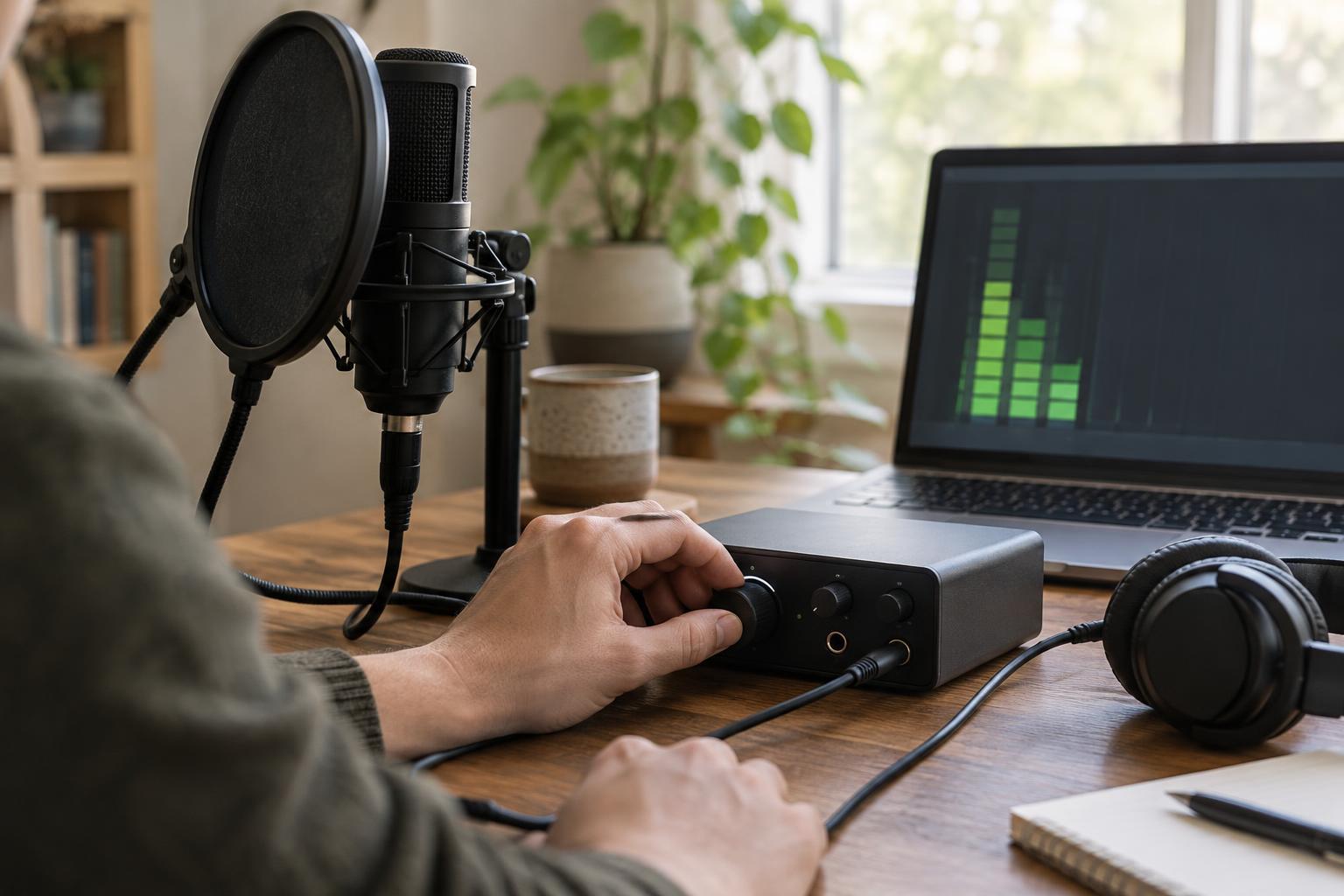
For a starting point, have the performer speak or play at the loudest level expected during the take. Adjust the input gain so those peaks generally land around −12 to −6 dBFS. This is a guide, not a target you must hit on every word or note. If the performance is especially unpredictable, leave more room. Watch the meter during a short test recording, then listen to it; the meter can reveal peaks, but your ears will catch problems it cannot explain.
Set the source and microphone before raising gain
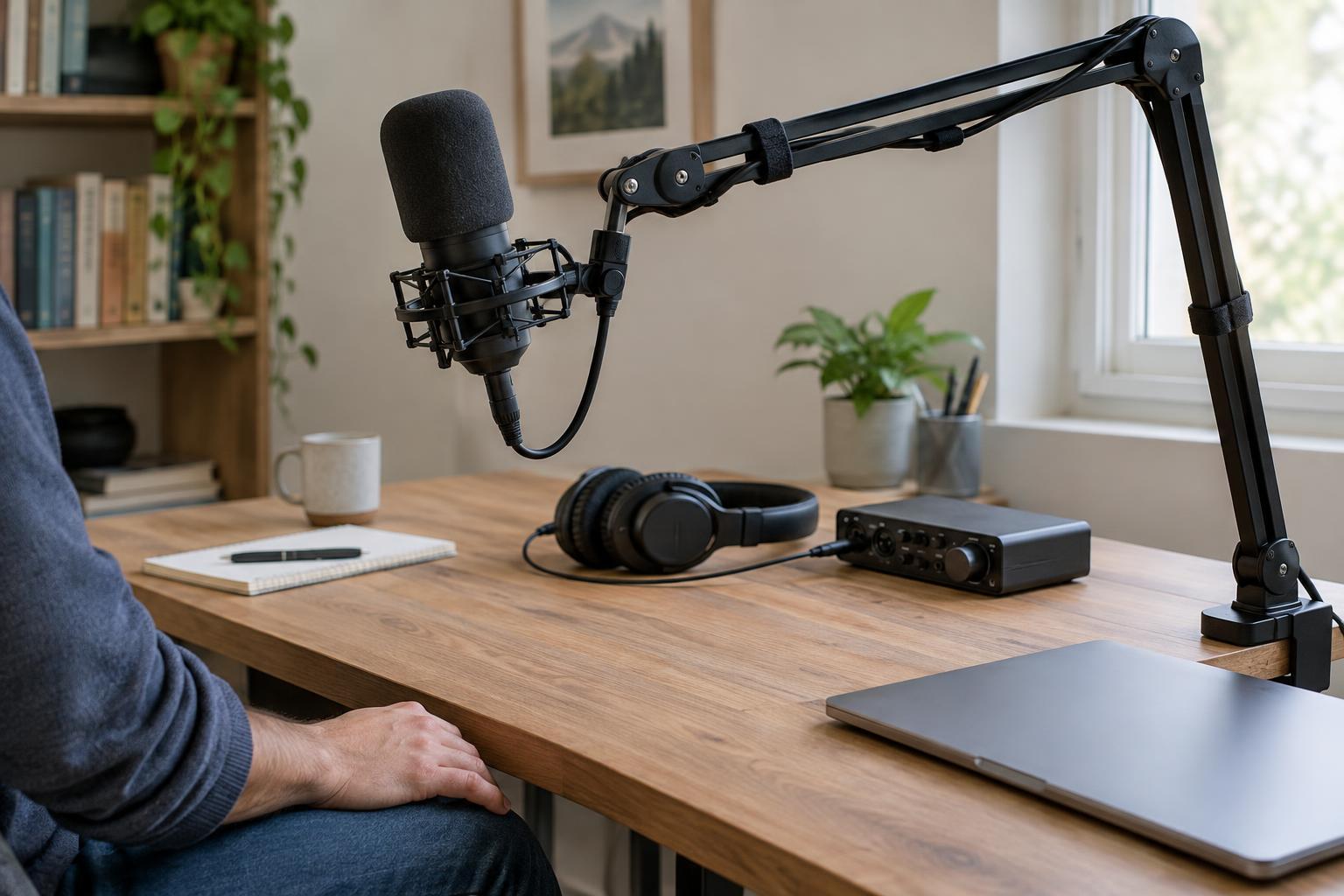
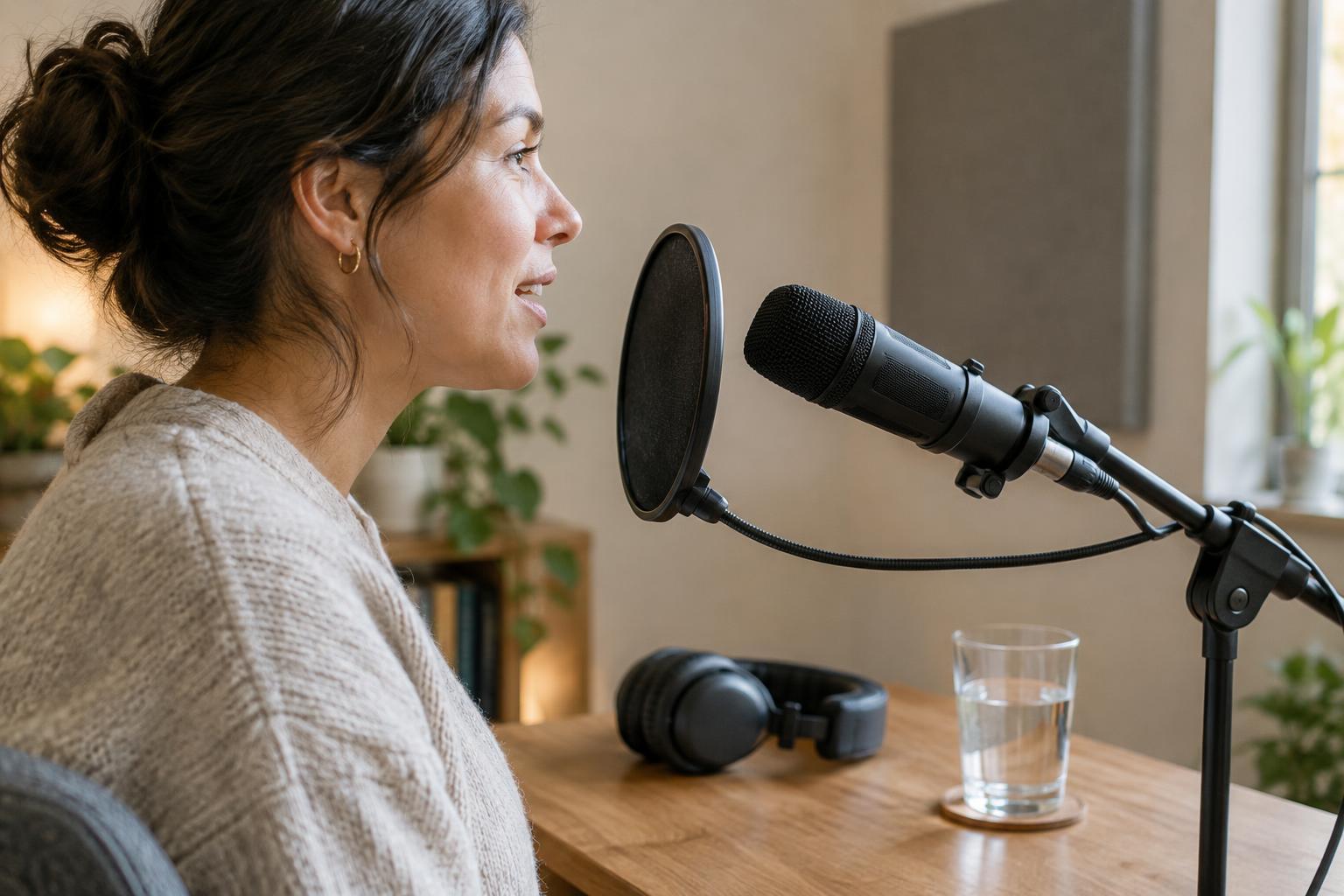
If a voice is quiet on the meter, turning up the gain may also make room noise, breath sounds and microphone hiss more noticeable. First, improve the sound reaching the microphone. Move it closer to the speaker when appropriate, keep its pickup side aimed at the voice, and ask the speaker to maintain a reasonably consistent position. A pop filter and a slight angle away from direct breath can help manage plosive sounds without forcing the speaker too far back.
For instruments, placement matters just as much. Moving a microphone a small distance can change both the level and the balance of the sound. Make adjustments while listening through headphones, and avoid putting the microphone where a player is likely to strike it. Once the source sounds good and the performer is comfortable, use input gain to bring the signal into a workable range.
Check the whole signal path
Find the control that changes the level before the sound is recorded. On an audio interface, this is usually the microphone preamp gain; on a portable recorder, it may be called input level. A track fader in recording software often changes only playback or monitoring volume. Turning that fader down will not necessarily prevent an overloaded input from clipping. Likewise, a loud headphone mix does not mean the recorded file itself is loud.
Check for overload indicators on the microphone, interface, recorder and software track, if your setup has them. A device earlier in the chain can distort even when a later meter looks safe. If a condenser microphone needs phantom power, confirm the required setting before testing. If you use a pad or switch between microphone and line inputs, check that those settings match the connected source. Make one change at a time so you can tell what solved the problem.
Balance headroom against background noise
Leaving headroom does not mean recording as faintly as possible. If the signal is extremely low, boosting it later can also boost steady hiss, ventilation and other sounds captured with it. Listen to a few seconds of silence in the room as well as the performance. If the background is distracting, try reducing the noise at its source, changing rooms or repositioning the microphone before adding more gain.
A quiet room and a well-placed microphone often do more for clarity than a precise meter reading. Recording at 24-bit, when your equipment supports it, gives you flexibility to leave comfortable headroom. Even so, sensible levels still matter: extra bit depth cannot repair a clipped input, and it does not remove noise already present in the room.
Run a test that resembles the real take
A useful level check includes the loudest words, laughs, emphatic lines or musical passages likely to occur—not just a calm microphone check. Record a brief rehearsal, play it back on headphones, and look for flat-topped waveforms or overload warnings. If you hear crackling on loud moments, lower the input gain and record another test. If the voice sounds distant or the room dominates, revisit microphone placement before reaching for a software fix.
Once recording begins, keep an eye on peaks without chasing every small change. Mark any suspect moments so you can review them later. Editing can adjust overall loudness and trim quiet sections, but it cannot reliably restore audio lost to severe clipping. A clear test, steady placement and a little headroom give you a better starting file—and more freedom to shape the sound afterward.