Start with the sound in the room
A signal chain is simply the route sound takes to become a recording. For a spoken-word session, it begins before any equipment is switched on: your voice moves through the room and reaches the microphone. The mic captures what arrives, including background noise and reflections from nearby walls. Software can help you edit later, but it is easier to record clearly at the source.
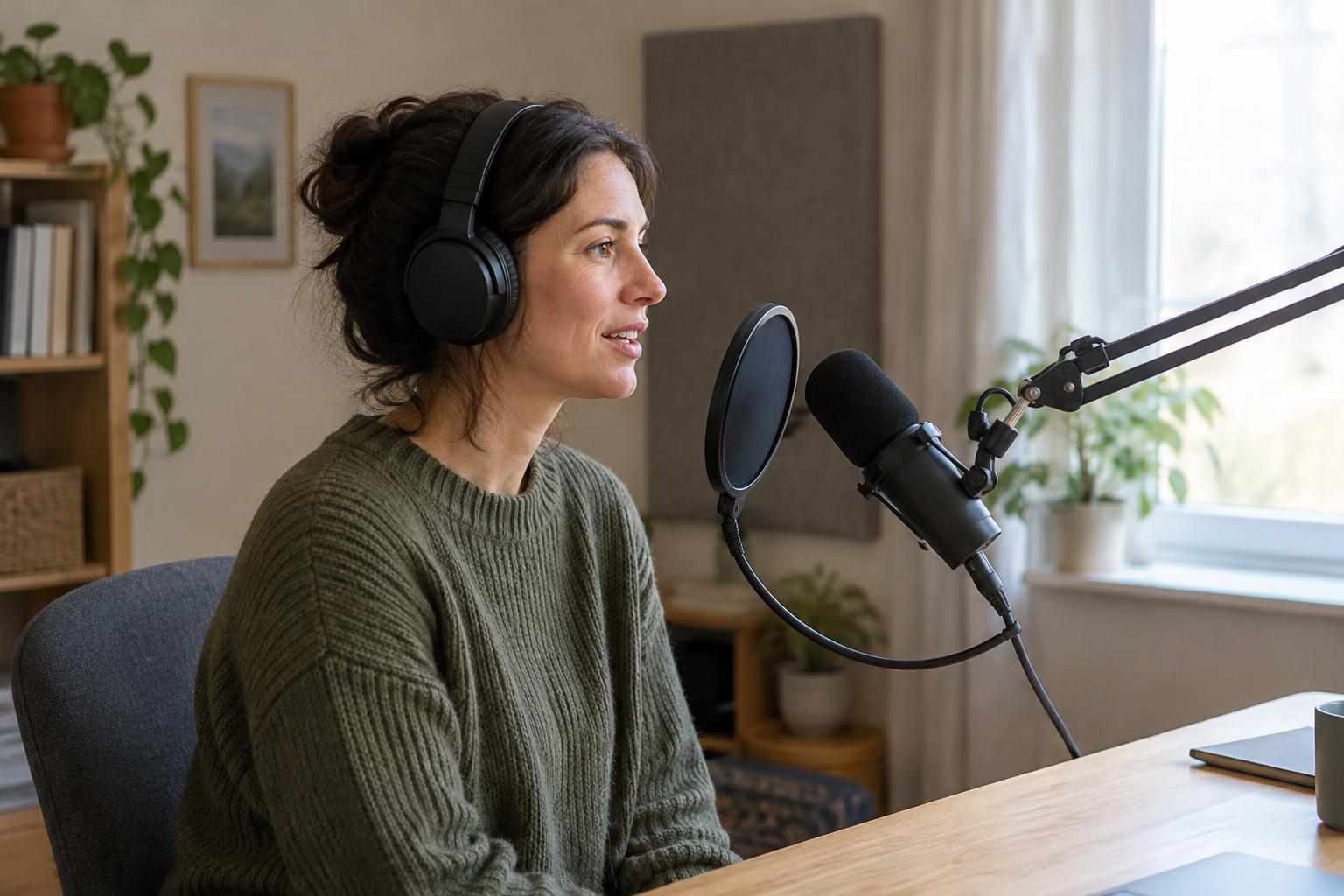
Choose a reasonably quiet spot and listen for fans, traffic, buzzing lights and other sounds that might be easy to ignore while speaking. Keep a consistent distance from the microphone so your voice does not rise and fall unexpectedly. If bursts of air make words beginning with “p” or “b” sound harsh, try a pop filter or speak slightly across the microphone rather than directly into it. A short test recording will tell you more than the appearance of the room.
Connect the microphone to a recording device
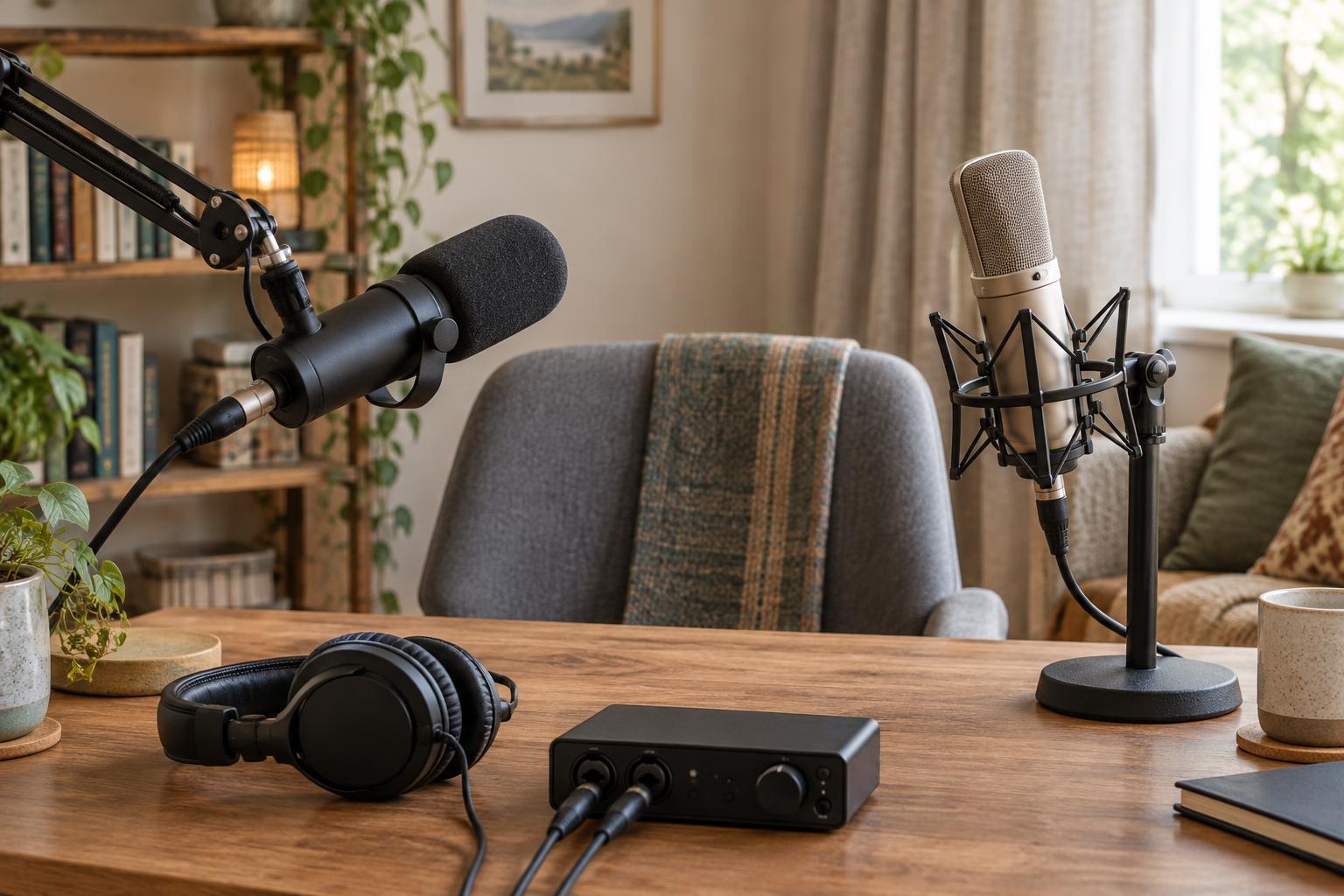
A common beginner setup uses a microphone with an XLR cable connected to an audio interface. The microphone turns sound into a small electrical signal. The interface receives that signal, boosts it through a preamp and converts it into digital audio that a computer can record. Some microphones need phantom power supplied by the interface; check the microphone’s requirements before turning that setting on.
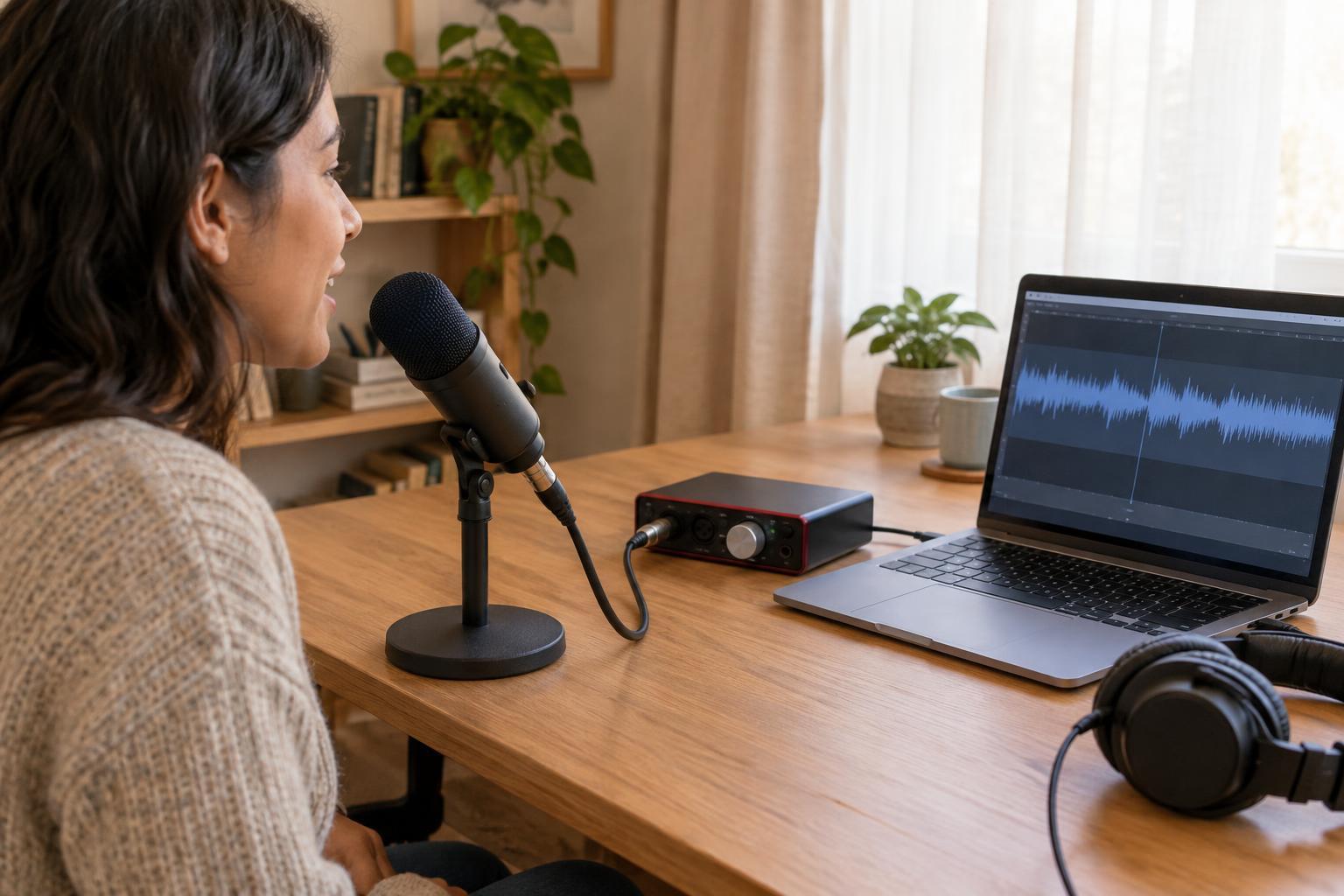
A USB microphone combines several of those steps in one device: it connects directly to a computer and handles conversion internally. Neither route is automatically the right choice for everyone. An XLR setup offers a separate interface that may accommodate different microphones or additional inputs, while a USB mic can mean fewer pieces to connect. In either case, check that the cable is seated properly and that your recording software is set to use the device you actually plugged in.
Set gain, then listen
Gain controls how much the microphone’s signal is amplified before recording. Set it while speaking at the volume you expect to use, then try a few louder words. If the input level reaches the top of the meter and the sound becomes crunchy, turn the gain down and record another test. Distortion caused by an overloaded input usually cannot be cleanly repaired afterward. If the signal is extremely quiet, raising it during editing may also make background noise more noticeable.
Headphones help you hear problems as they happen without sending playback back into the microphone. Many interfaces offer direct monitoring, which lets you hear the input before it passes through the recording software and can reduce distracting delay. If you hear yourself twice, check whether both direct monitoring and software monitoring are active. You can also make a quick recording and play it back: hearing the live signal does not always mean the intended track is being saved.
Record a track in your software
Recording software takes the digital audio from your chosen input and writes it to a track. Before a full take, select the correct input, arm the track for recording and capture a short sample. Play it back to confirm that the file contains your voice, not silence or a laptop’s built-in microphone. If you are recording more than one person, decide whether each microphone will have its own track; separate tracks can make later level adjustments and edits easier.
You may see settings for sample rate and bit depth. These describe how digital audio is captured and stored, but you do not need to chase the highest available numbers for a clear voice recording. A practical approach is to choose a format your software supports reliably, keep the settings consistent across a project and leave enough storage space for the session. Save the project in a named folder so its recordings are easy to find.
Export the audio file and check it
The recording in your project is not necessarily the file you will share. After editing and adjusting levels, export the finished audio to create a standalone file. An uncompressed WAV file is useful when you want a high-quality copy for further editing or storage. A compressed format such as MP3 can be convenient for sharing when a smaller file is helpful. Keep the project and original recordings as well; an export does not replace them if you want to revise the piece later.
Finally, open the exported file and listen to its beginning, middle and end. Confirm that it plays, contains the full recording and sounds as expected outside the editing project. If something is missing, work backward through the chain: Was the correct track included in the export? Did the software record the intended input? Was the microphone connected and receiving sound? Treating the chain as a series of checkable steps makes troubleshooting less mysterious.